Load
Orthogonal Planes ...
from the File menu of the 3-D Viewer: 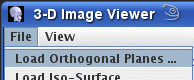
To add a set of orthogonal planes to the 3-D display, select Load
Orthogonal Planes ... from the File menu of the 3-D Viewer:
A dialog will now appear, from which you can select the image from which the orthogonal planes will be extracted and displayed.
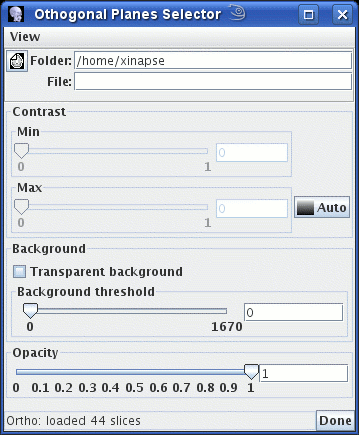
 icon, by typing in the folder (directory) and file name of
the image, or by pressing the right mouse
button and selecting from the menu of recently-used images.
icon, by typing in the folder (directory) and file name of
the image, or by pressing the right mouse
button and selecting from the menu of recently-used images.

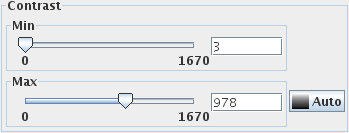
 button to
set the brightness/contrast automatically.
button to
set the brightness/contrast automatically.
 check-box. All pixels with an intensity below that of the
the background threshold will be considered to be "background" and set
completely transparent. Change the level of what is considered to be
"background" using the background threshold slider:
check-box. All pixels with an intensity below that of the
the background threshold will be considered to be "background" and set
completely transparent. Change the level of what is considered to be
"background" using the background threshold slider:

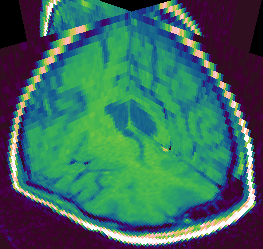
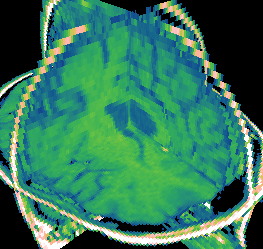
The effect of having a transparent background is illustrated in the figure below.
 |
 |
|---|---|
| Opaque background | Transparent background |

View menu.
You can change the position of the orthogonal planes as described in the section about general controls.
If you click the  button, the
orthogonal planes will be removed from the 3-D viewer.
button, the
orthogonal planes will be removed from the 3-D viewer.