Mac OS X 10.5 (Leopard) Installation

Installation of Jim on Macintosh computers is currently restricted to 64-bit systems running Mac OS X 10.5 (Leopard) since Jim requires java version 6 (1.6.0), and this version of java has only been released by Apple for this combination. Installation of Jim is in seven distinct stages:

  1. Install the Java Runtime Environment (jre) version 1.6.0.
  2. Install the Jim software
  3. Install Java 3-D and Java OpenGL (jogl)
  4. Request a license
  5. Install the license
  6. Customise the installation
  7. Download some example images (optional)

  1. Java Runtime Environment (JRE) Installation. JRE version 6.0 (also known as 1.6.0 or Java SE 6.0) is required for Jim Version 5.

    Note: you do not need to perform this step if you are running OS X 10.6 (Snow Leopard) since JRE 6.0 will already be installed.

    JRE 1.6.0 is available for download only for Macintosh computers with 64-bit Intel processors running OS X 10.5 (Leopard). Please go to the downloads section of the Apple web site, and enter the search term "java 1.6". Then follow the link and instructions to download and install Java SE 6.

  2. Installing Jim. Once you have Java installed, you can download and install the Jim programme.

    Note: If you are re-installing the same version of Jim, please copy your existing license file (license.txt) from the installation folder (most likely /Applications/Xinapse/Jim5) to a safe place, and then completely remove the contents of the installation folder. You will find an uninstall program in the installation folder to do this for you.

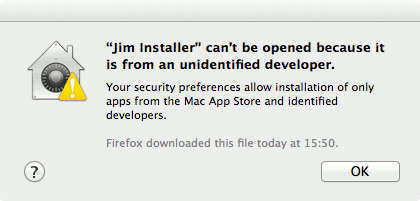
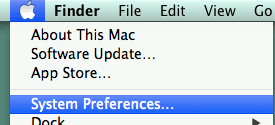
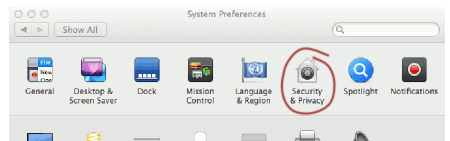
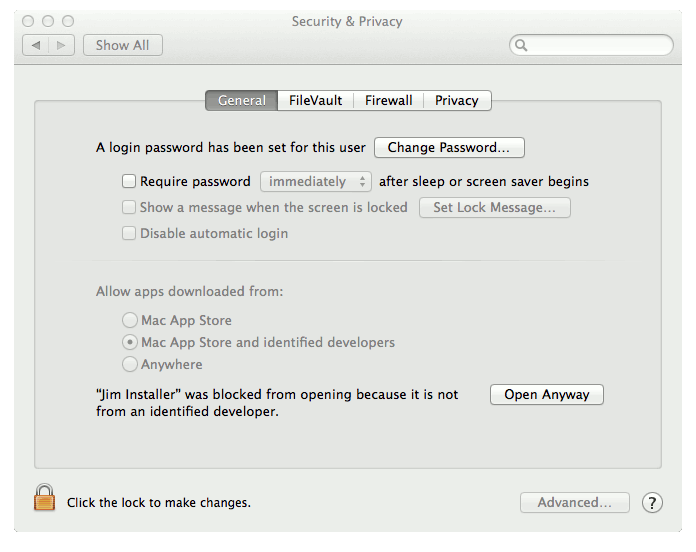
    Click right on jinstall.tar.gz and select "Download Linked File". When downloaded, double click on the jinstall.tar.gz icon on the Desktop, which will unpack the installer. Then double click on the InstallPackage icon on the Desktop. Jim's installer wizard will now start. Click through to choose the installation folder. You are advised to select the folder /Applications/Xinapse/Jim5.

    Note: you may need to do the installation as administrator user if you want to install Jim in the default location (/Applications/Xinapse). If you do not have administrator permissions, you can perform a personal installation in your home folder.

  3. Installing Java 3D and Java OpenGL (jogl). Java 3D (Version 1.5.1 or later) and jogl are required for the 3-D display features to work. They are installed after you install Jim, and the necessary files are supplied when you download Jim. These files just need to be copied to the correct location on your computer. (Note: the following instructions assume that you installed Jim to the default location /Applications/Xinapse/Jim5).

    Note: Java 3D is installed as part of the installation of JRE 6.0. However, the installed version is out-of-date and will need to be replaced as detailed below.

    Open a terminal window and go to the location to where the files need to be copied.

    cd /System/Library/Java/Extensions
    
    You will need to replace some of the existing (out-of-date) files that are already there, so first rename them in case you need to revert the existing setup.
    sudo mv vecmath.jar vecmath.jar.bak
    sudo mv j3dcore.jar j3dcore.jar.bak
    sudo mv j3dutils.jar j3dutils.jar.bak
    
    Now copy all the required files supplied in your Jim installation folder.
    sudo cp /Applications/Xinapse/Jim5/MacOSX/lib/i386/* .
    
    Note: there is a period (".") at the end of the command above.
    Note: you will need Administrator rights to perform the above steps. The sudo command above gives you administrator rights, but you will be prompted to enter your password after the first command.

  4. License request. Note that in order to run a trial (demo) of Jim, your computer must have a network card installed and working. Jim can use the network card hardware address as the unique ID of your computer for licensing purposes.

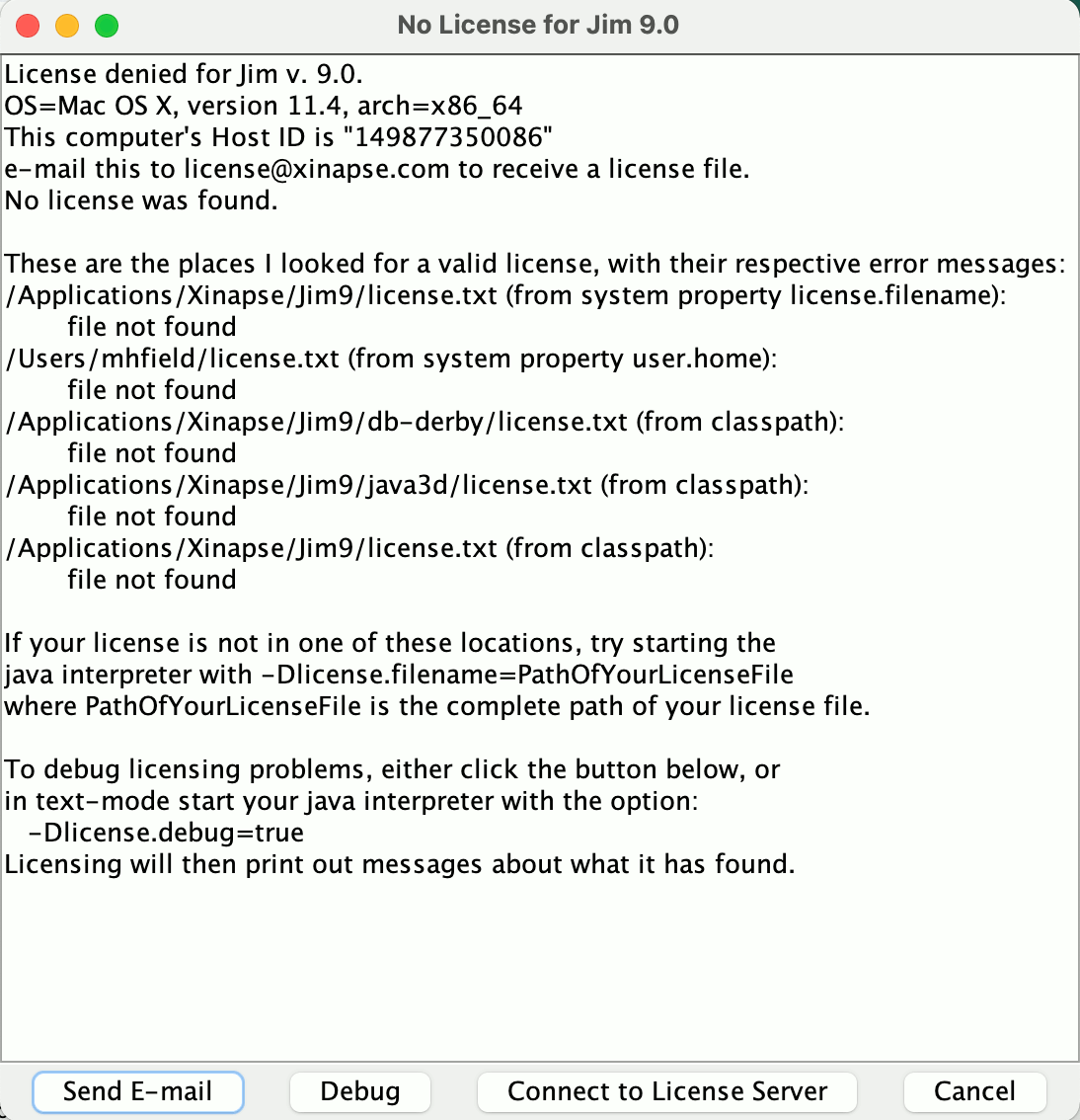
    The easiest way to obtain the details needed to send for a license is to try starting Jim. If you have not yet received a license file, you will see a pop-up error dialog like the one shown below.

    If, at the top of this dialog, you see a message like This computer's Host ID is "00123FDB5B8C" then your computer has only one network card. If, however, you see more than one Host ID (as above), then your computer has more than one network adapter and you need to choose which HostID to send. If you send the Host ID corresponding to a removable adapter, and remove the adapter, then Jim will stop working. To list your network adapters, start the terminal program (use Finder to search for "terminal" if you are not sure how to do this) and type the command:

    /sbin/ifconfig -a

    Please send the hardware address to , and we will then send you in return by e-mail a license file for Jim.

    Note: this is not an automated service, and there will be a delay before you receive your license file.

    Note: If you have a network of computers, installation of Jim need not be done on the same computer that you intend to use to run Jim. The name and hardware address you send should be for the computer on which you intend to run Jim.

    If you believe that you have received and correctly installed your license file, then you can get Jim to print out more detailed messages about why licensing has failed. Press the button. This will pop up a further dialog containing detailed license debugging messages. You can use these to diagnose the problem, or e-mail the messages shown in this window to , to help us to diagnose the problem.

    If you have purchased network (floating) licenses, you can set up the connection to your license server by clicking on the . See the instructions for setting up a connection to a license server.

  5. Install the License. The license file you will receive by e-mail should be saved to a text file, and copied into the directory where you installed Jim (normally /Applications/Xinapse/Jim5). Please ensure that the name of this file is "license.txt". The installation directory is the directory that also contains (amongst others) the file "xinapse5.jar".

    The first thing to check if licensing fails on a Mac OS X system is that the command:
    /sbin/ifconfig en0 gives a result similar to the one below, containing the line with the ether 00:0a:11:22:aa:bb:cc:

    
    en0: flags=8863 mtu 1500
             ether 00:0a:11:22:aa:bb:cc
             media: autoselect 
             supported media: none autoselect 10baseT/UTP  100baseT/UTP ...
             ...
        
    If this is not the case, please ask your systems administrator for help.

  6. Now see the section on customising a Mac OS X installation.

  7. You may also wish to download some example images to get you going with Jim.
Google
WWW Xinapse Web Site

Jim Home