Raw Data Converter ...
from the File menu: 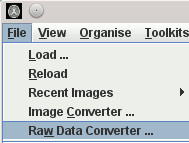 .
.
The Raw Converter allows the conversion of raw binary data into one of the supported multi-slice image formats.
To convert images select Raw Data Converter ...
from the File menu: .
The Raw Converter window will now appear:
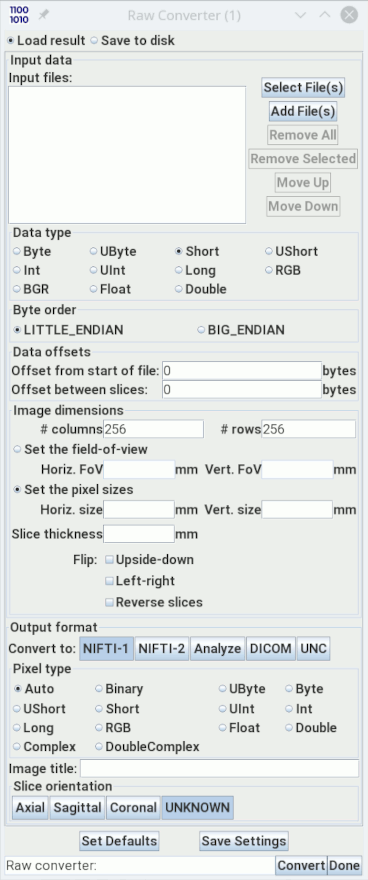
The Raw Converter allows you to create one single-slice or multi-slice image from one or more input files. Each of the input files may contain pixel values for one or more slices of the output image.
First, select the input file(s) from which the pixel values
will be extracted by pressing the  button. A
file chooser will now pop up. To
select more than one input file, follow the instructions in the
file chooser description.
button. A
file chooser will now pop up. To
select more than one input file, follow the instructions in the
file chooser description.
Next select the type of binary data in your input files. If you select the wrong type for your data, the resulting images will be unusable. Choose:
Byte for signed 8-bit integer data.
Ubyte for unsigned 8-bit integer data.
Short for signed 16-bit integer data.
UShort for unsigned 16-bit integer data.
Int for signed 32-bit integer data.
Uint for unsigned 32-bit integer data.
Long for signed 64-bit integer data.
RGB for red,green,blue 3×8-bit data.
BGR for blue,green,red 3×8-bit data.
Float for 32-bit floating point data.
Double for 64-bit floating point
(double precision) data.
Next select the byte order for the input data, either:
Little Endian for data typically originating on a PC (MS Windows or
Linux or Macs).
Big Endian for data typically originating on a
Sun/SPARC or SGI workstation.
Note: the actual byte order depends not only on the type of computer, but also on the software it runs to produce the image data. If you're not sure of the binary format or byte order of your data, contact the person from whom the data originated, or the manufacturer of the equipment that produced the data (or just experiment with Jim).
If the pixel values do not start at the beginning of your binary
input files, or if there is additional data between the data for
individual slices, then enter the data offsets (in bytes) in the
Data offset fields:

In the example above, the data for the first slice of the image starts at an offset of 1024 bytes into the input files(s), and there are 512 bytes of non-image data between slices in the input file(s). If each file contains only one slice of image data, then the second offset value is ignored.
Now tell the Raw Converter how to combine the input data into images. Specify:




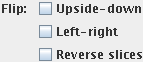
Now choose the format of the image to be created. Select:
"Auto", then Jim will choose the
most appropriate pixel type. If you choose a pixel type that is
incompatible with the sort of raw input data, then an error will
appear. If you choose a pixel type that is not supported by the
file format of the output image, then an error will also
appear.
Raw Converter what imaging plane
your data is most like (Axial, Sagittal or Coronal). If you
don't know, don't care, or there are various imaging planes in
the data, leave this as "Unknown".
When ready, press the  button to begin conversion of your raw
data files.
button to begin conversion of your raw
data files.
Depending on whether your selection  , the converted image will either be loaded into
Jim, or a file chooser
will pop up for you to enter an file name for the new image.
, the converted image will either be loaded into
Jim, or a file chooser
will pop up for you to enter an file name for the new image.
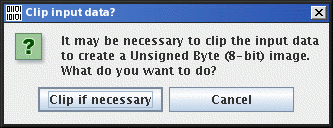
Depending on the datatype you have selected for the output image, you may receive a pop-up message warning that the input data may need to be clipped to fit into the data range of the output image. For example, if you select Short as the input datatype, and UByte as the output pixel type, then you will see:
Click the  button when
you have finished with the Raw Converter.
button when
you have finished with the Raw Converter.