Windows Installation (32-bit)

These instructions are for installing the 32-bit version of Java on the Windows operating system. If you are running a 64-bit Windows operating system, you should consider installing the 64-bit version of Java, since this will allow you to work with very large images due to the increased amount of memory available. Instructions for a 64-bit installation can be found here. Please note that if you are running a 32-bit Windows operating system, you cannot install 64-bit Java.

Note that Jim can only be run with a trial or node-locked license on Windows systems that have an Ethernet network card installed. In gathering information for a license, you will discover whether this is the case.

Installation of Jim under Windows XP/Server/Vista/Windows 7 comes in seven distinct stages:

  1. Install the Java Runtime Environment (JRE) (32-bit version)
  2. Install Java 3D (32-bit version)
  3. Install the Jim software
  4. Request a license
  5. Install the license
  6. Customise the installation.
  7. Download some example images (optional).

  1. Java Runtime Environment (JRE) Installation. JRE version 6.0 (also known as 1.6.0) is required for Jim Version 6. It can be downloaded from the Oracle web site. Please be sure that you download and install the correct version of the jre (version 6.0, Standard Edition, 32-bit is required). Look for "Java SE 6". Select the "Windows x86" (32-bit, Online or Offline) version of Java.

    Please follow the download and installation instructions on the Oracle web site. You should, if possible, accept the default installation location.

    If you wish to do some Java Programming
    If you want to write your own Java programmes, perhaps to do some image analysis using the imaging A.P.I. supplied with Jim, then you'll need to install the Java Development Kit (JDK) instead of the JRE. Please go to the Oracle web site, and be sure to download JDK 6.0.

  2. Installing Java 3D. Java 3D (Version 1.5.1 or later) is required for Jim 6.0, and must be installed after you install the JRE. To install, please go to the Java 3D download page. Version 1.5.1 (or later) of Java 3D is required. Please download and run the correct installer for Java3D, which will have a name such as j3d-1_5_2-windows-i586.exe.

  3. Installing Jim. Once you have the JRE (or JDK) installed, you can download and install the Jim programme.

    Note: If you are re-installing the same version of Jim, please copy your existing license file (license.txt) from the installation folder to a safe place. Any batch files that you created or customised for the previous release may need to be recreated or re-customised.

    1. Save jinstall.exe in a temporary folder (or the Desktop) on your system as a binary file. Important: to download a binary file and save it under the correct name, you should click the right mouse button on the filename link, and select Save from the pop-up menu.
    2. Verify that the filename you downloaded is jinstall.exe.
      If your browser saved it with any other name, then rename it.
    3. Double-click on the downloaded copy of jinstall.exe to install Jim. This will launch the installer.
    4. In the installer, when you come to choose the "Installation directory", you can do either:
      • A system-wide installation - you will need Administrator rights. Select the installation folder "C:\Program Files\Xinapse\Jim6".
      • A personal installation (for your own use). Select the installation folder "C:\Users\Username\Xinapse\Jim6", where Username is your own user name.
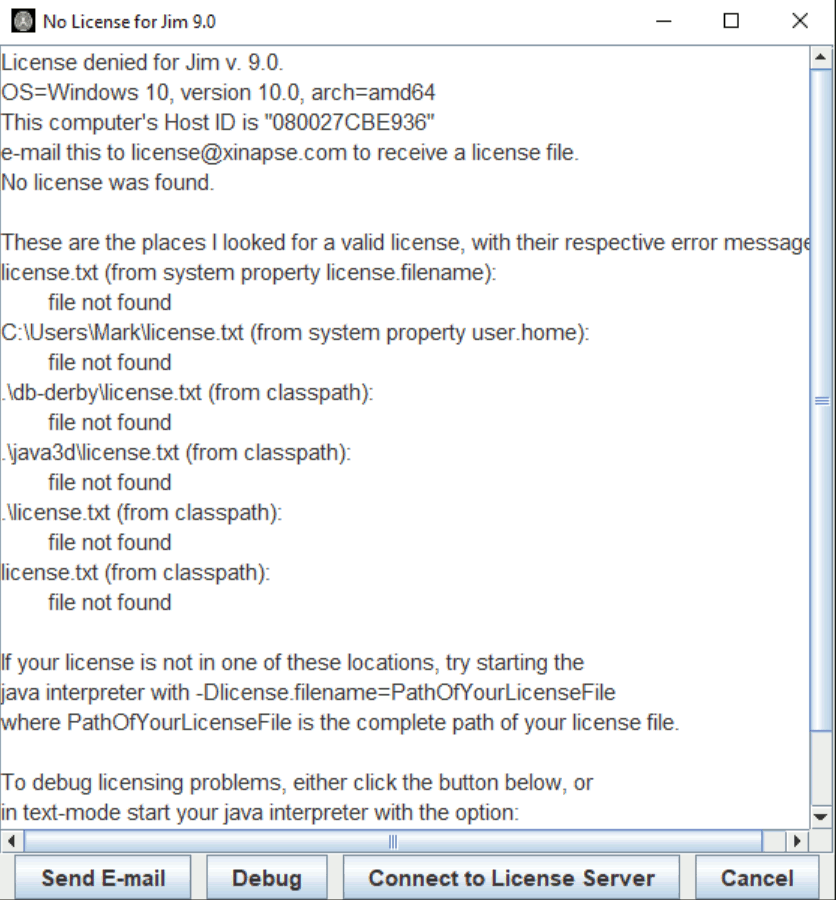
  4. License Request. Note that in order to run a trial (demo) of Jim, your computer must have a network card installed and working. Jim can use the network card hardware address as the unique ID of your computer for licensing purposes. The easiest way to obtain the details needed to send for a license is to try starting Jim. To start Jim, go to the Start button, then select Programs (All Programs on Windows XP, Vista and Windows 7), Jim, then the Jim menu item. If you have not yet received a license file, you will see a pop-up error dialog like the one shown below.

    You will see a line that says something like either:
    • This computer's Host ID is: "000123456789"
      Please send this string of digits/letters to .
    • This computer's hostids are: "000123456789" "000F1E2D3C4B5"
      If this happens, you have more than one ethernet adapter. Please follow the instructions in the error message to decide which of these to send to .

    Note: this is not an automated service, and there will be a delay before you receive your license file.

    Please be careful when copying the hostid: if you send the incorrect hostid, Jim will not work. Each hostid is 12 characters long, and consists of the digits 0..9 and the letters A..F.

    If in doubt, you can always send us full details about your network adapters by doing the following.

    • Go to the Start button, and select All Programs, Accessories, Command Prompt (as seen below, using Windows XP).

    • When the DOS command prompt window comes up, type in the command: ipconfig /all > C:\ip.txt
      This command will create a file called ip.txt in the C: folder.
    • e-mail the file ip.txt to . We will then be able to choose the appropriate MAC address for your PC.

    Note: this is not an automated service, and there will be a delay before you receive your license file.

    If you believe that you have received and correctly installed your license file, then you can get Jim to print out more detailed messages about why licensing has failed. Press the button. This will pop up a further dialog containing detailed license debugging messages. You can use these to diagnose the problem, or e-mail the messages shown in this window to , to help us to diagnose the problem.

    If you have purchased network (floating) licenses, you can set up the connection to your license server by clicking on the . See the instructions for setting up a connection to a license server.

  5. Installing the License. The license file you will receive by e-mail should be saved to a text file, and copied into the directory where you installed Jim (most likely C:\Program Files\Xinapse\Jim6). Please ensure that the name of this file is "license.txt". (The installation directory is the directory that also contains (amongst others) the file "xinapse6.jar"). You should now be able to start Jim and its stand-alone tools from the Start button under All Programs, Jim then the Jim menu item. If not, please e-mail who will help you to resolve the problem.
  6. Please also see the section about customising a Windows installation.
  7. You may also wish to download some example images to get you going with Jim.
    Google
    WWW Xinapse Web Site

    Jim Home